Logging In & Password Recovery
Sign in with email or Google, pass an MFA challenge, and reset a forgotten password.
On this page
Logging In
On the Login page, enter the email and password you signed up with, or click "Continue with Google" to use your Google account. Once signed in you land on your dashboard.
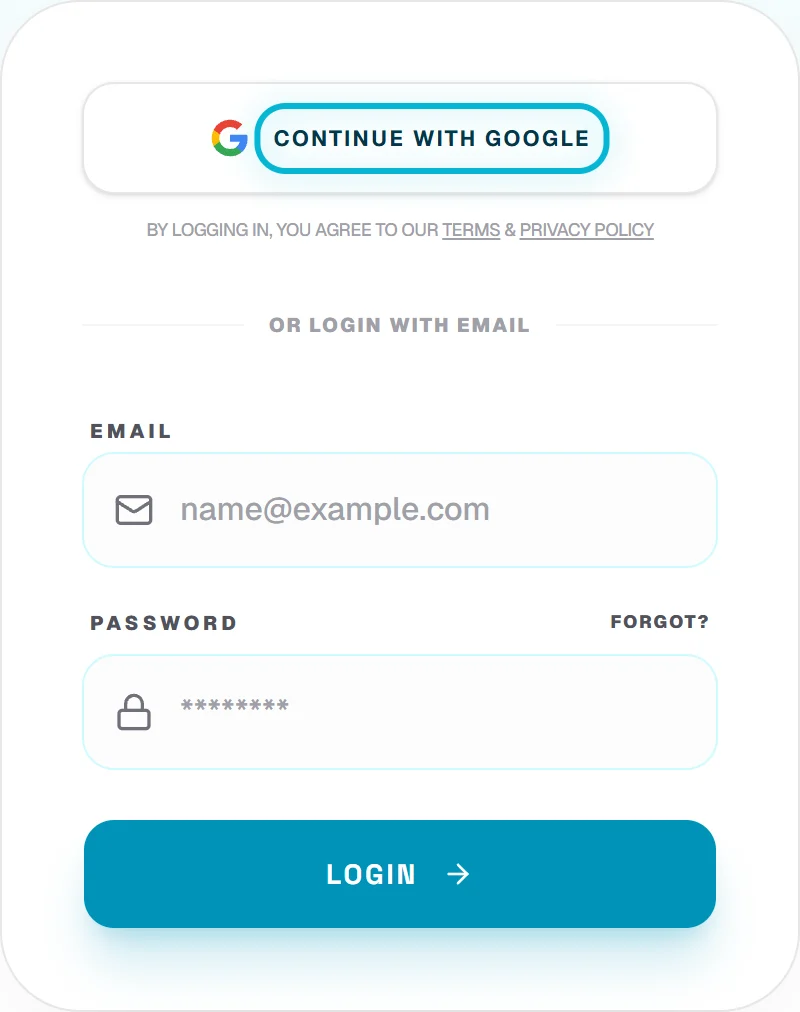
Sign in with email and password, or with Google.
If You Have Two-Factor Enabled
If you have turned on two-factor authentication (MFA), after entering your password you will be asked for a 6-digit code from your authenticator app. Enter the current code to finish signing in. If you cannot reach your authenticator, you can use one of your saved backup codes instead. See "Securing Your Account with MFA" for setup and recovery details.
Resetting a Forgotten Password
If you cannot remember your password, use the "Forgot Password" link on the Login page. We email you a secure reset link; open it and choose a new password. For security the link is time-limited, so request a fresh one if it expires.
- 1On the Login page, click "Forgot Password".
- 2Enter the email address on your account.
- 3Open the password-reset email we send you.
- 4Follow the link and set a new password.
- 5Return to the Login page and sign in with the new password.
No reset email after a minute or two? Check your spam folder, and make sure you entered the exact email you registered with (Google sign-in accounts do not use a password — use "Continue with Google" instead).
Changing Your Password While Logged In
If you know your current password and just want to change it, you do not need the email flow. Go to the Settings page, open the password section, enter your current password and your new one, and save. You can also start a full guided reset from there.